
- This event has passed.
3 PM – Intro To Java
June 13, 2020 @ 3:00 pm - 4:00 pm
- We went over FlowPane
- We went over BorderPane
- Homework:
- Modify the BorderPane project that we did in the class. I have uploaded the files to the google drive if you missed the last class.
- Inside sample.fxml on the BorderPane tag element, add the following
-
fx:controller="sample.Controller"
- So it will probably look similar to this
-
<BorderPane fx:controller="sample.Controller" prefHeight="300.0" prefWidth="400.0" xmlns="http://javafx.com/javafx/10.0.2-internal" xmlns:fx="http://javafx.com/fxml/1">
- Remove all the buttons on the top and on the left sections.
- Remove the top FlowPane and left FlowPane.
- Add a FlowPane on the bottom of BorderPane.
- Using BorderPane, FlowPane and Gridpane like we learned last week, create a user interface like the following:
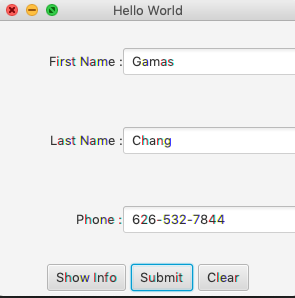
- When you click Show Info button do the following
- It needs to call the Controller.showInforAlert method like below
-
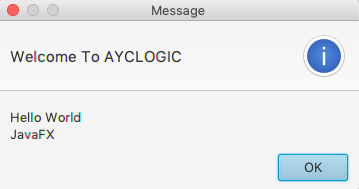
public void showInfoAlert(ActionEvent ae) {
    Alert a = new Alert(Alert.AlertType.INFORMATION);
    String message = "Hello World\n";
    message += "JavaFX";
    a.setHeaderText("Welcome To AYCLOGIC");
    a.setContentText(message);
    a.show();
}
-
- You need to connect the sample.fxml “Show Info” button with this “showInfoAlert(ActionEvent ae)” method like we have done in the class before.
- If you do it correctly, when you click the “Show Info” button, it will show a popup dialog like the following
- It needs to call the Controller.showInforAlert method like below
- When you click Submit button it will do the following
- Get the text from the first text field. The one right next to the First Name label.
- Get the text from the second text field. The one right next to the Last Name label.
- Get the text from the last text field. The one right next to the Phone label.
- Display an alert with all of those 3 informations from the text fields like the following
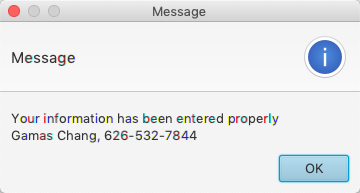
- You need to follow example fro “Show Info” button on how to create an Alert Dialog like above.
- When you click Clear button, it will clear all the 3 text fields.
- Modify the BorderPane project that we did in the class. I have uploaded the files to the google drive if you missed the last class.